 Binder
How to use Binder
This walks through everything the product does, in the order you would actually meet it. It assumes no experience with software of this kind. If you can send an email, you can do all of it.
The short version, if you only read one paragraph. Each of your locations gets its own email address. You give that address to the companies who service your kitchen. Their reports arrive here instead of getting lost in your inbox, you confirm what each one is, and from then on this tells you what is coming due. When an inspector asks for proof, you send them a link.
1Adding your first location
A location is one premises. If you run one restaurant you will have one; if you run three you will have three, and each is billed separately.
Give it the name you would want a hood cleaner to read back to you over the phone. "Main Street" is better than "Store 4". The name becomes part of the email address in the next step, and that address does not change if you rename the location later, so it is worth a moment's thought now.
2Giving the address to your vendors
This is the part that does the work, and it is the part people skip. Every location has its own address, shown on that location's page.
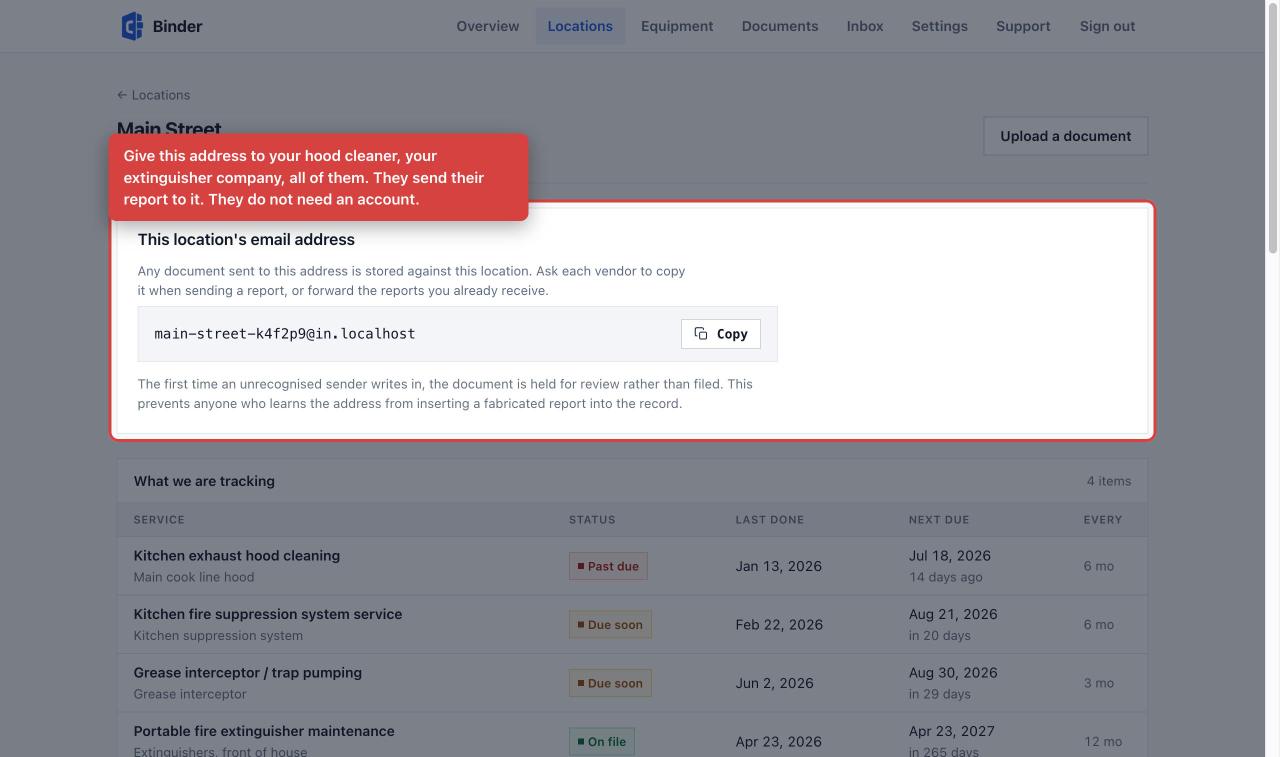
Send it to every company that services the place: hood cleaning, fire suppression, extinguishers, grease trap, alarm, backflow, pest control. Ask them to copy that address whenever they send you a report, or forward the reports you already receive.
They do not need an account, a login, or any software. They are sending an email to an address, which is what they already do. This is the single most common thing people misunderstand before they start.
Something to expect: the first time a company you have not used before sends to that address, the document is held for you to review rather than filed straight away. That is deliberate. It stops anybody who learns the address from dropping a fabricated report into your records. After the first one, their reports file themselves.
3Telling it what equipment you have
On a location page, add the things that get serviced on a schedule: the hood, the suppression system, the interceptor, the extinguishers. For each one you choose the type of service and how often it is due.
If you know when it was last done, enter that date. If you do not, leave it blank rather than guessing. A blank reads as "no record yet", which is honest. A guessed date looks exactly like a real one, to you and to anybody you later show the record to.
4Confirming a report when it arrives
When a report lands, we read it and make a guess at what it is and what date the work was done. That guess is never recorded on its own. You check it.
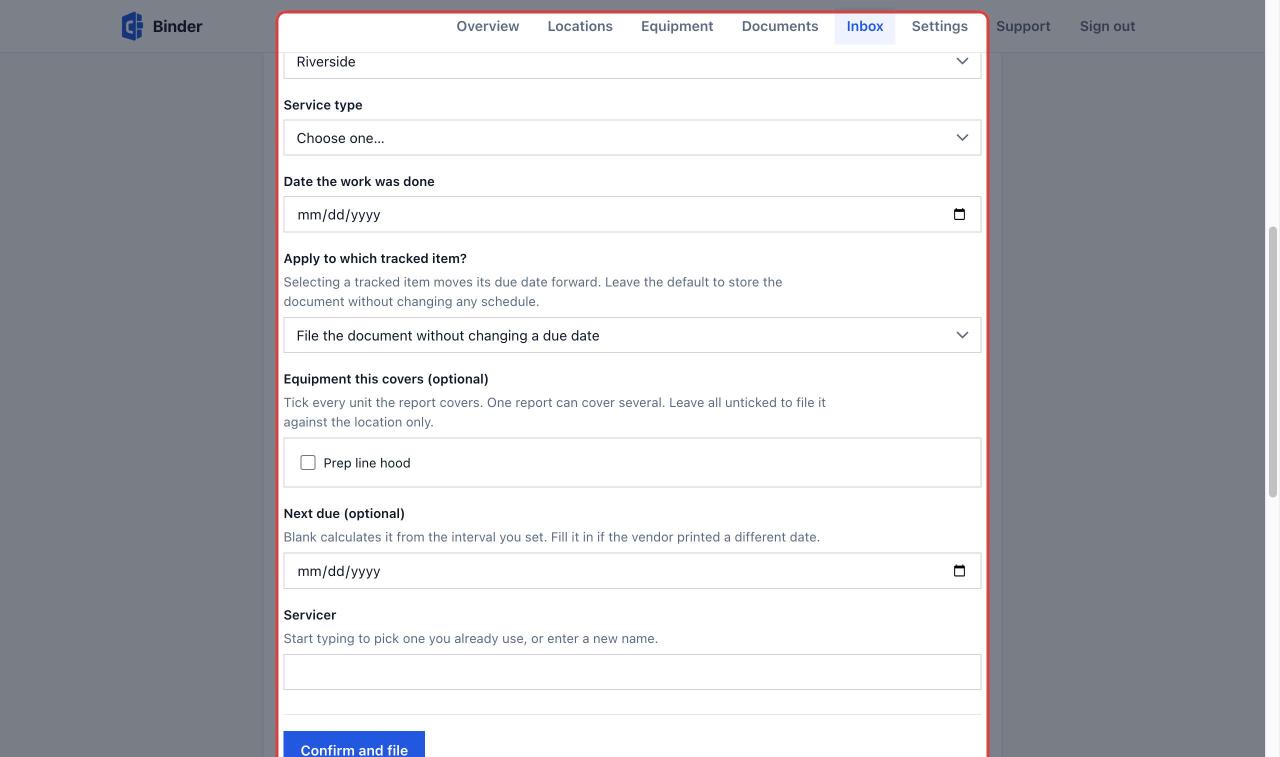
Open the document, look at the date printed on it, and correct ours if it is wrong. Then tell it which piece of equipment this covers. One report often covers several units, so tick all of them.
You can come back and change any of this later. A confirmed document is not locked; open it again and save the corrected version. Every change is recorded, including who made it and when.
5Reading the overview
The front page answers one question: is anything wrong. Whatever needs attention is listed first.
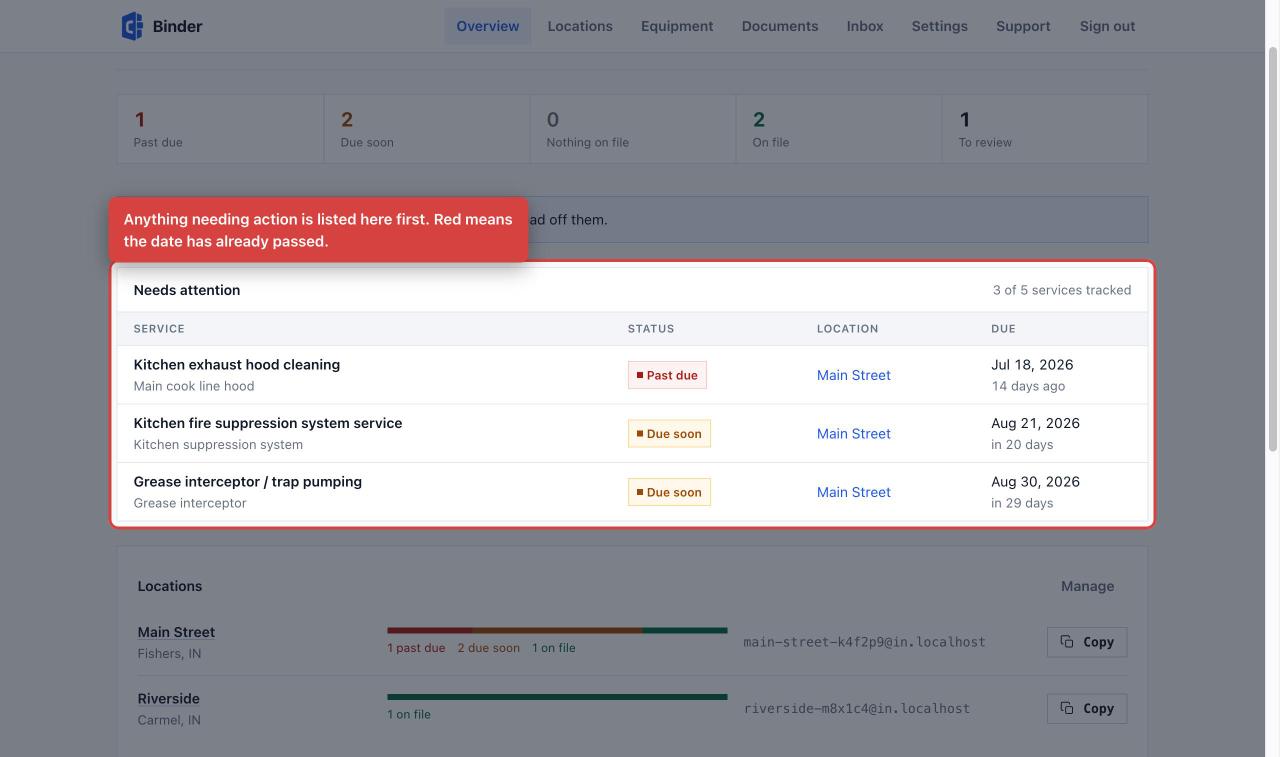
You also get one email each morning if anything is coming due, at 30 days, 14 days and 3 days out, and once it has passed. If nothing is due, no email is sent. It will not nag you daily about the same thing.
6Showing your records to an inspector
On a location page, under "Show this to someone", give the link a label so you remember who it was for, choose how long it should work, and create it. You get a URL to send.
The person opening it sees a read-only page: what is tracked, what is on file, and the documents themselves. They do not need an account. The link expires on the date you chose, you can revoke it at any moment, and you can see how many times it has been opened.
The link is shown once, when you create it. Only a fingerprint of it is stored, which is what stops anybody, including us, producing a working copy later. Send it or paste it somewhere before you close that page. If you lose it, reissue the link, which makes a new one and kills the old.
7Getting everything out
Settings has an export: every location, every piece of equipment, every document with its dates and a link to download it. It works whether or not you are paying, including after you cancel.
Beside it is Activity: every change ever made to a record, who made it, and when. It cannot be edited or deleted from anywhere in the product, including by you. If somebody ever asks whether a date was changed after the fact, that page is the answer.
8Closing a location, and deleting one
Closing a location stops the billing for it and stops its address accepting mail. Nothing is deleted: the history stays readable, shareable and exportable, because you may still be asked about the period the site was open. It can be reopened at any time and keeps the same address.
Deleting is different and only offered on a location that is already closed. It destroys the documents permanently after thirty days, during which you can call it off. Take the export first. After the thirty days nobody can produce those files again, for you or for anyone asking you for them.
What this does not do. It does not inspect anything, does not verify that work was actually performed, and does not tell you that you are compliant. It records what your vendors sent and what you confirmed. The intervals that apply to your premises are set by your fire marshal or health department, and where they disagree with anything shown here, they are right.
Stuck on something this does not cover? Write to support@compliancebinder.com. A person answers.